Every Linux user eventually meets the terminal, and most meet it twice: once with curiosity, once with dread after a mistyped command. The command line is not a separate skill you bolt on later. It is the same system you already use, with the wrapping paper removed. A weekend of deliberate practice is enough to go from copying commands out of forums to understanding what each one does before you press Enter.
This guide assumes one thing: a working Linux install, physical or virtual, where you can break things safely. If you are still getting Linux onto a machine, read the dual-boot guide that keeps your Windows install intact first, then come back. Everything below runs on any mainstream distribution, no extra software required.
Before you start: three habits that prevent disasters
First, never paste a command you do not understand into your terminal, especially one that starts with sudo or ends with a pipe into sh. Second, learn man before anything else: man ls opens the manual for ls, and pressing q quits it. Third, practise in a scratch directory. Create one with mkdir ~/playground and do all your experiments inside it, so a wrong rm costs you nothing.
Part 1: find your bearings
Open a terminal and run these four commands, in order, watching what each one tells you:
pwd
ls -la
cd ~/playground
pwd
pwd prints where you are. ls -la lists everything in the current directory, including hidden files, with sizes and permissions. cd moves you somewhere else, and ~ is shorthand for your home directory.
Two more commands complete the picture. whoami prints your username, and uname -a prints kernel and system details, the first thing experienced users ask for when you request help online.
Part 2: make, move, and copy files
Inside ~/playground, build a small tree to work with:
cd ~/playground
mkdir -p notes/2026 drafts
touch notes/2026/hello.txt drafts/idea.txt
ls -R
mkdir -p creates nested directories in one step. touch creates an empty file, or updates the timestamp of an existing one. ls -R lists recursively, so you can see the whole tree at a glance.
Now practise the three verbs you will use daily:
cp drafts/idea.txt notes/2026/idea-copy.txt
mv drafts/idea.txt drafts/renamed.txt
cat notes/2026/hello.txt
cp copies, mv moves or renames, and cat prints a file's contents. Note that mv does not ask before overwriting a destination file. That is the first real trap: the terminal assumes you mean what you type, so double-check destination names before pressing Enter.
Deleting deserves its own paragraph, because it is the one command beginners fear most, rightly. rm drafts/renamed.txt deletes a file permanently; there is no trash bin. rm -r deletes directories and everything inside them, and rm -rf skips even the confirmation prompts. The rule is simple: never run rm -rf with a path you typed from memory, and never run it as root.
Part 3: read and search file contents
Real work is mostly reading: logs, configuration files, output from other programs. These commands cover almost all of it:
seq 1 50 > notes/2026/numbers.txt
head -n 20 notes/2026/numbers.txt
tail -n 20 notes/2026/numbers.txt
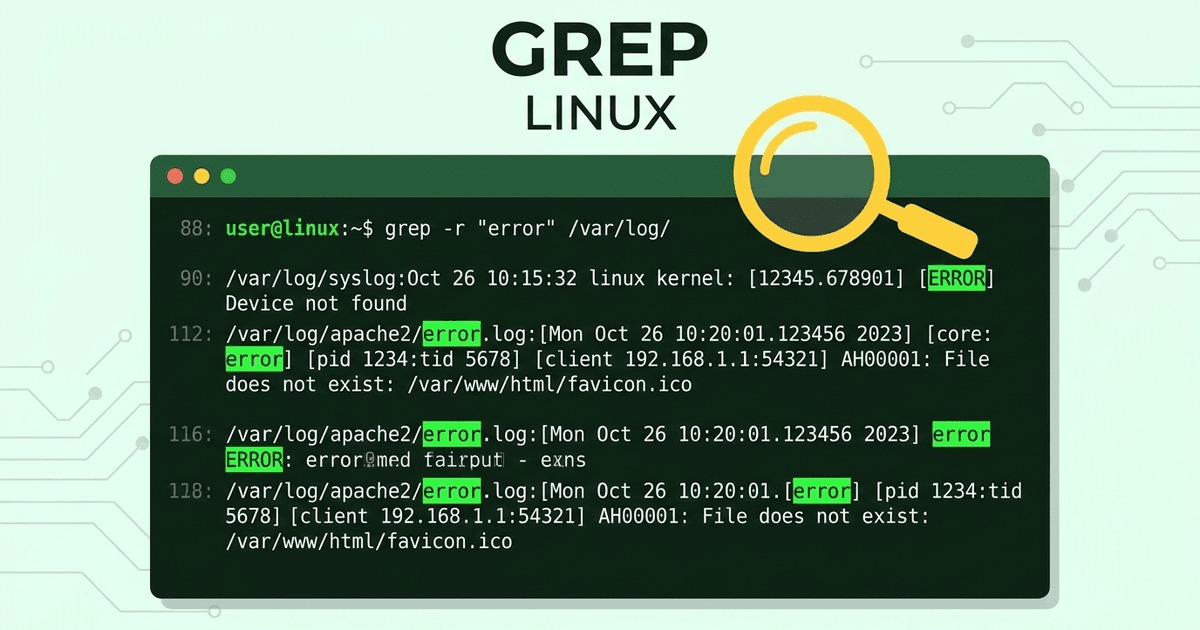
grep -r "weekend" notes/
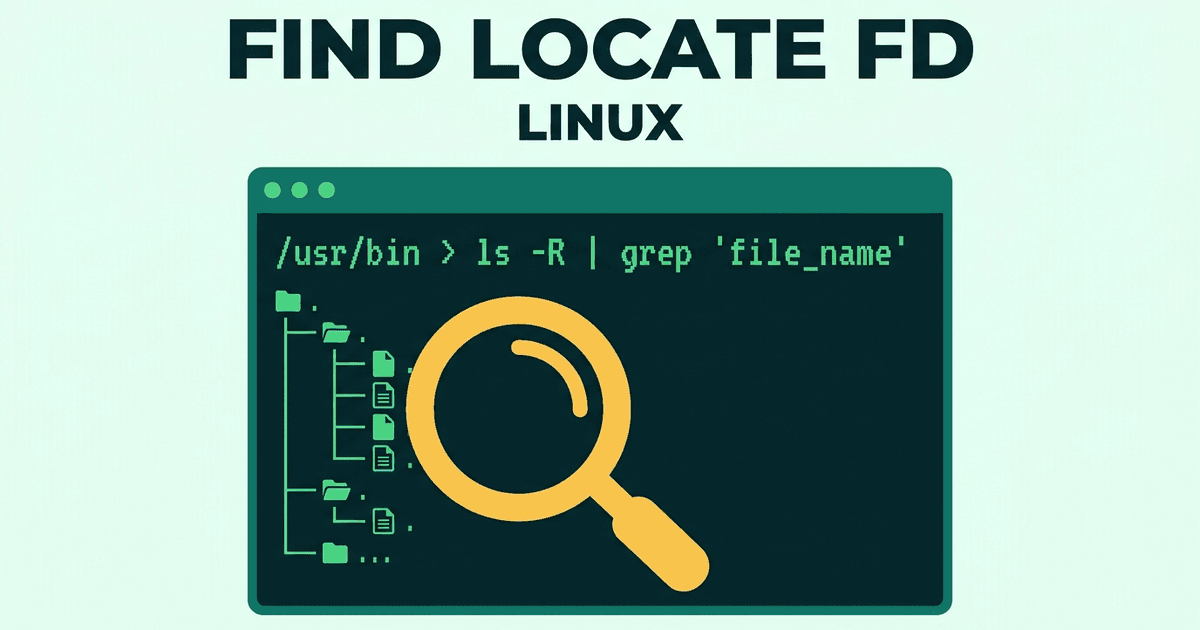
find ~/playground -name "*.txt"
head shows the first lines, tail the last ones, and tail -f follows a file live, which is how you watch a log while something runs. grep searches inside files, and the -r flag makes it recursive. find searches by name, size, or age across a whole tree. Between grep and find, you can locate almost anything without a graphical search tool. less opens a file in a scrollable viewer (arrow keys to move, q to quit), and wc -l counts lines.
Part 4: pipes, redirection, and permissions
This is the part where the command line stops feeling like a list of commands and starts feeling like a language. The pipe character | sends one command's output into another's input:
ls -la /usr/bin | grep python
ps aux | grep firefox
du -sh ~/playground
df -h
The first line lists executables and filters for Python. The second finds running Firefox processes. du -sh reports how much disk a directory uses, and df -h shows free space per filesystem, in human-readable units.
Redirection works the same way for files. > writes output to a file, overwriting it; >> appends:
echo "weekend notes" > notes/2026/hello.txt
cat notes/2026/hello.txt
echo "second line" >> notes/2026/hello.txt
Then permissions, the concept that confuses beginners most. Run ls -l and read a line like -rw-r--r--: the first character is the type, then three groups of three letters for owner, group, and everyone else, each r (read), w (write), or x (execute). chmod +x script.sh makes a file executable; sudo runs a command as administrator. Use sudo for system tasks only, never to paper over a permission problem in your own home directory.
Part 5: processes and the system
Sooner or later something will hang, and the terminal is where you fix it. ps aux lists processes, top shows a live table sorted by CPU, and kill <PID> asks a process to stop, using the process ID from the ps output. kill -9 forces it, and should be your last resort, not your first move. For system state, free -h shows memory usage and uptime shows load and how long the machine has been running.
Your weekend practice plan
Theory without reps does not stick, so finish with drills. Do them in order, and do not move on until each one behaves the way you expect:
- Create a directory tree three levels deep, then move a file from the bottom level to the top with a single
mv. - Find every
.txtfile under your home directory modified in the last day, usingfind. - Search your notes for the word
weekendwithgrep, then count the lines in the file withwc -l. - Pipe
ps auxintogrepto find your own shell, then note its PID without killing anything. - Check disk space with
df -h, find your largest directory withdu -sh, and explain the difference between the two numbers.
If you can do all five without looking anything up, you are past the beginner stage. The next step is better workflow: keeping a terminal session alive across disconnects, which is exactly what the tmux playbook for persistent terminal sessions teaches, and organising the configuration files you will accumulate, which is where the dotfiles guide using Git and Stow comes in.
The traps, collected
Most beginner damage comes from a short list. Copying rm -rf from a forum post. Running everything with sudo until file ownership is a mess. Redirecting with > instead of >> and wiping a file you meant to extend. Killing a process with -9 before trying a plain kill. And the quietest trap of all: running a command in the wrong directory because you never checked pwd first. A two-second pwd and ls before any destructive command would prevent most of these, and experienced operators still do it out of habit, not caution. That is the real secret: not hundreds of commands, but twenty commands used deliberately. Spend the weekend on that, and the terminal stops being a place you fear and becomes the fastest way to get things done.
Sources
- GNU Coreutils manual: https://www.gnu.org/software/coreutils/manual/
- Linux man-pages project: https://man7.org/linux/man-pages/
- GNU Bash manual: https://www.gnu.org/software/bash/manual/