Every Linux user has been there. You downloaded a file, edited a config, or unpacked an archive, and now it has vanished into the filesystem. The graphical file manager's search box spins, finds nothing useful, and you start clicking through folders by hand. Stop. The terminal has three tools that answer "where is my file?" in seconds, and each one is good at a different kind of question: find, locate, and fd.
This guide covers all three, in the order you will actually reach for them. You need nothing but a terminal and a user account; sudo only shows up for one optional step. Every command below is safe to run as-is, and each section ends with the exact output you should expect.
Start with find: the tool that is always there
find ships with every Linux distribution, needs no database, and searches the live filesystem. Its basic shape is simple:
find <where> <what>To find a file called notes.txt anywhere in your home directory:
find ~ -name "notes.txt"The quotes matter. Without them, the shell expands * and ? before find ever sees them, which is the single most common reason a find command silently returns nothing. Get in the habit of quoting patterns.
find earns its keep with filters. A few you will use constantly:
# Files only, not directories
find ~/Downloads -type f -name "*.iso"

# Directories only
find /etc -type d -name "*nginx*"

# Case-insensitive name match
find ~ -iname "readme*"

# Modified in the last 24 hours
find ~ -mtime -1 -type f

# Bigger than 100 MB
find ~ -size +100M -type f

# Empty files and directories
find ~ -empty
Combine filters freely. This finds large log files modified this week:
find /var/log -type f -name "*.log" -size +10M -mtime -7And when you want to do something with the results, -exec runs a command on each match. This deletes stale .tmp files older than 30 days, asking first:
find ~/Downloads -name "*.tmp" -mtime +30 -exec rm -i {} \;The {} is replaced by each file found, and \; ends the command. Always run the find part alone first and eyeball the list before adding -exec rm. There is no undo.
Two gotchas to know. First, searching from / scans everything, including /proc and /sys, which are virtual filesystems full of entries that are not real files. Narrow the starting directory, or add -xdev to stay on one filesystem:
find / -xdev -name "myfile.conf" 2>/dev/nullSecond, that 2>/dev/null is doing real work: it hides the flood of "Permission denied" errors from directories you cannot read. Without it, the errors bury the results. You are not losing anything; those directories were never going to contain your file anyway.
Reach for locate when you want it instant
find walks the disk every time, which is thorough but slow on a big tree. locate answers from a prebuilt index instead, so it returns in milliseconds:
locate notes.txtIt searches the whole system by default and matches any part of the path, so locate nginx.conf finds /etc/nginx/nginx.conf and /usr/share/doc/nginx/examples/nginx.conf alike.
The catch is the index. locate only knows about files that existed when the database was last built, usually once a day by a cron job or systemd timer. A file you created five minutes ago will not show up. Refresh the index yourself when it matters:
sudo updatedbThen search again. If your distribution does not ship locate at all, install the mlocate or plocate package; the command and the database work the same way.
locate has one more habit worth knowing: it matches substrings, so locate pass also returns password-store, compass, and every path containing "pass". Anchor the match with a full path or a regex when the list gets noisy:
locate -r "/notes\.txt$"Try fd when you want find without the syntax tax
fd is the modern rewrite of find, and it fixes the two things people complain about: the syntax and the speed. It is not preinstalled on most distributions, but it is one package away:
# Debian / Ubuntu
sudo apt install fd-find
# Fedora
sudo dnf install fd
# Arch
sudo pacman -S fd
On Debian and Ubuntu the binary is named fdfind, not fd, because of an old package name clash. Add an alias to your shell config if that bothers you:
alias fd=fdfindThe defaults are the friendly part. fd searches the current directory recursively, ignores hidden files and .gitignored paths, prints colorized results, and uses regex by default:
# Any file with "report" in the name
fd report

# Only .md files, anywhere below here
fd -e md

# Files changed in the last day
fd --changed-within 1d

# Search a specific directory
fd nginx /etc
Compare that with the equivalent find invocation and the appeal is obvious. fd is also parallel by default, so on a large tree it finishes noticeably faster than find. The tradeoff is the dependency: on a server you do not control, or in a rescue environment, find is the tool that is guaranteed to be there.
When the file is found but the text inside is lost
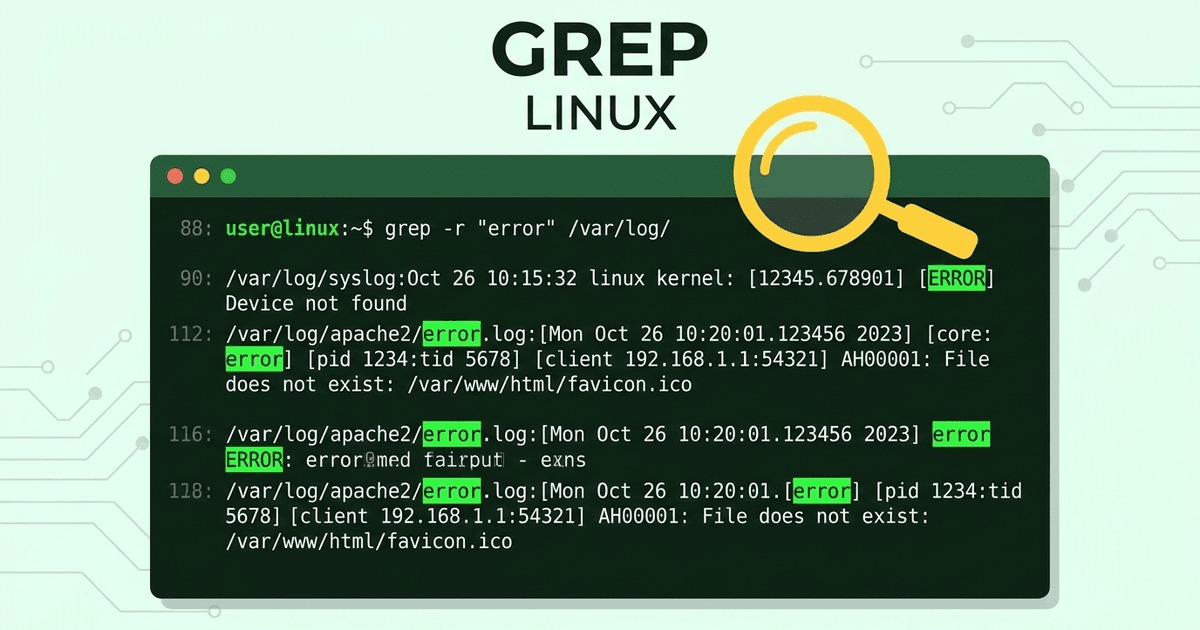
Sometimes you know what is in the file, not what it is called. That is a job for content search, not filename search. grep -r is the built-in answer:
grep -r "max_connections" /etc --include="*.conf"It prints the matching line and the file it came from. For a faster, friendlier version, install ripgrep (rg); it respects .gitignore by default and skips binary files without being asked:
rg "max_connections" /etcFile search and content search are complementary skills. Learn both and the "where did I put that" problem mostly disappears.
A quick drill to lock it in
Run these four commands right now, in order, and watch how each tool answers the same question differently:
find ~ -name "*.pdf" -mtime -7
locate -r "\.pdf$"
fd -e pdf ~
rg -l "invoice" ~/Documents
The first lists recent PDFs by walking your home directory. The second answers instantly from its index. The third does the same job with cleaner syntax. The fourth does not care about filenames at all; it finds PDFs by the word inside them. Four tools, four angles, one lost file found.
Which tool, when?
- find: always available, exact, live results. Use it on servers, in scripts, and when the file might be minutes old.
- locate: instant, whole-system, but only as fresh as its last
updatedb. Use it when you know the file has been around a while. - fd: the fastest to type and the fastest to run. Use it on your own machine once installed.
- grep / rg: when you remember the contents, not the name.
Losing a file on Linux is not a disaster; it is a one-line query. Learn find first, because it is everywhere, add locate for speed, and install fd when you are ready for the shortcut. Your future self, hunting a config at 2 a.m. before a deploy, will be glad you did.